> ## Documentation Index
> Fetch the complete documentation index at: https://research.verifyyou.com/llms.txt
> Use this file to discover all available pages before exploring further.

# Qualtrics setup

> Put HumanCheck in front of your Qualtrics study. Five steps, no code.

<a className="vy-next" href="/respondent-flow"><span className="vy-next-step">4 of 6</span><span className="vy-next-label">Next: The respondent experience</span><span className="vy-next-arrow"><Icon icon="arrow-right" iconType="light" size={14} /></span></a>

<Steps>
  <Step title="Create your study">
    In Qualtrics, exactly as you normally would.

    <ol className="vy-sub">
      <li>Build your study as usual. Your questions stay exactly where they are.</li>
      <li>The gate is added in the **Survey Flow**, not on a page, so nothing about your instrument changes.</li>
    </ol>

    <p className="vy-have"><strong>You now have:</strong> a normal Qualtrics study.</p>
  </Step>

  <Step title="Create a verification and paste your Qualtrics link">
    In the VerifyYou dashboard.

    <ol className="vy-sub">
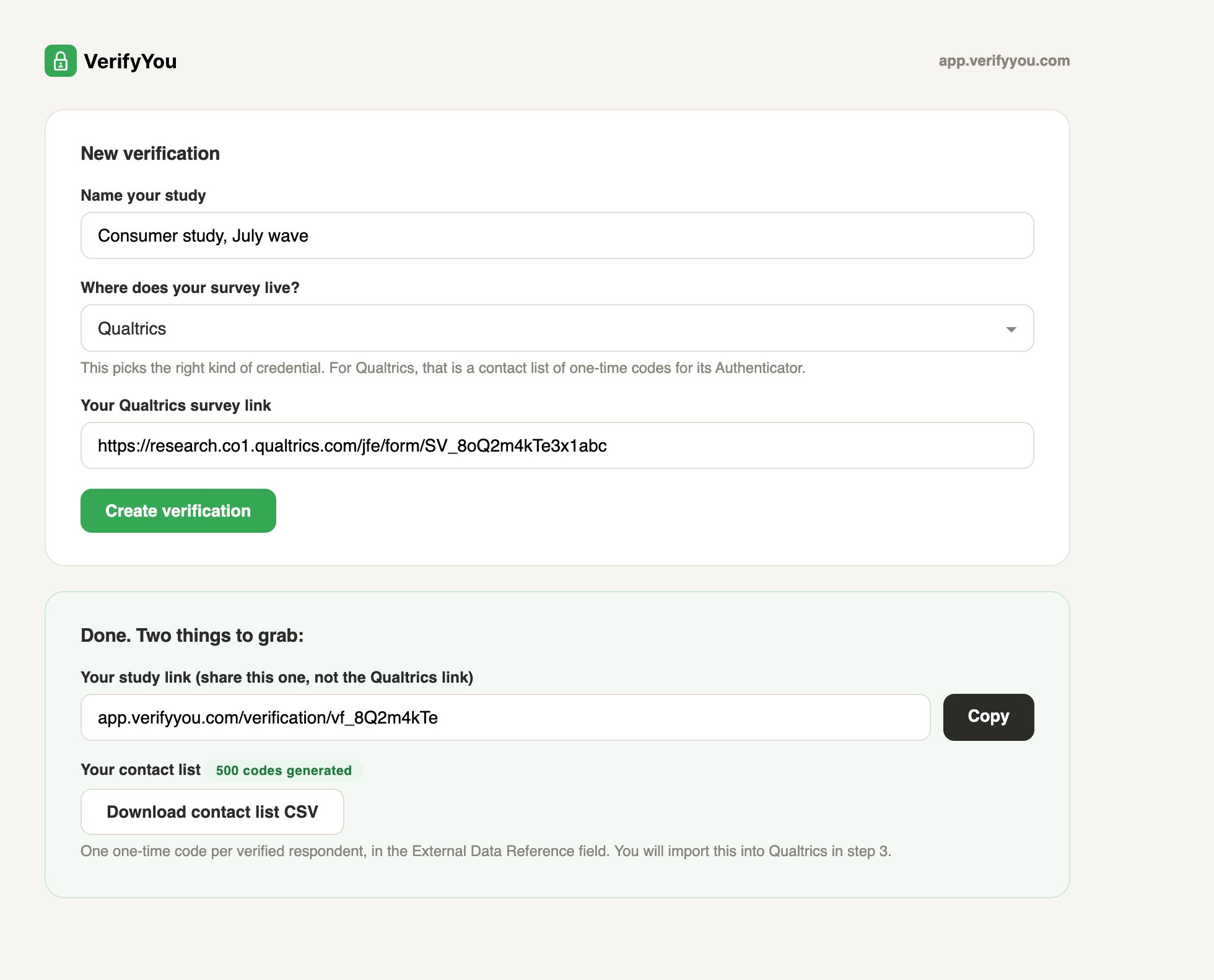
      <li>Click **New verification** and name the study.</li>
      <li>Under **"Where does your survey live?"** pick **Qualtrics**. That choice is how we know to create one-time codes in a contact-list file, the credential Qualtrics's own Authenticator understands.</li>
      <li>Paste your Qualtrics link and click **Create verification**.</li>
    </ol>

    <p className="vy-have"><strong>You now have:</strong> your <strong>study link</strong> (the one you share, your Qualtrics link stays private) and a <strong>ready-to-import contact list</strong> holding one one-time code per verified respondent.</p>

    <Frame caption="Dashboard mockup, a simple screen we are finishing now. What powers it, the hosted check and per-person single-use credentials, is live in the product today.">
      <img src="https://mintcdn.com/verify-you-alchemer-flow/4q4qtqODCyHvVjv2/images/mock-create-qualtrics.png?fit=max&auto=format&n=4q4qtqODCyHvVjv2&q=85&s=f46cc2169b634e8ea91fefc1cf619e51" alt="VerifyYou new verification screen, Qualtrics selected" width="1960" height="1582" data-path="images/mock-create-qualtrics.png" />
    </Frame>
  </Step>

  <Step title="Import the codes as a contact list">
    In Qualtrics's **Contacts** (called **XM Directory** on newer accounts).

    <ol className="vy-sub">
      <li>Click **Create Contact List** and import the VerifyYou file as-is.</li>
      <li>Each row carries one code in the **External Data Reference** field. That field is the passcode slot.</li>
    </ol>

    <p className="vy-have"><strong>You now have:</strong> a contact list where each code can authenticate exactly once.</p>
  </Step>

  <Step title="Add the gate in Survey Flow">
    Open your study's **Survey Flow**.

    <ol className="vy-sub">
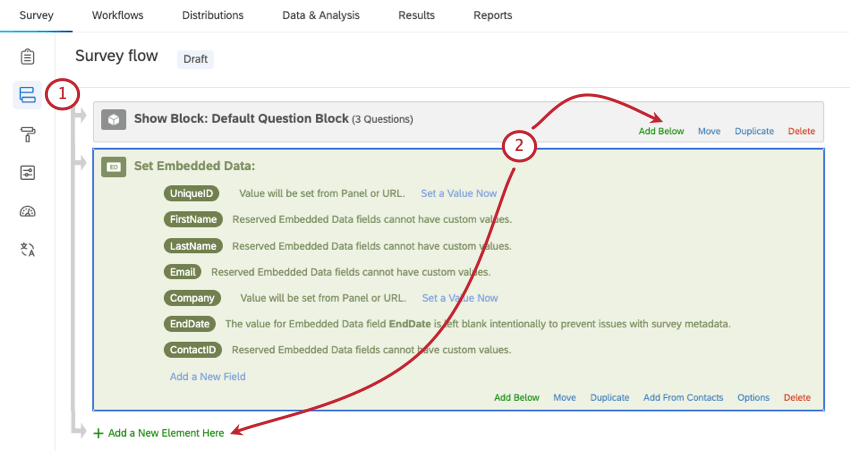
      <li>Add an **Embedded Data** element at the very top, with the single field name `vy_code` and no value. Qualtrics then fills it from each respondent's link, their documented [query-string mechanism](https://www.qualtrics.com/support/survey-platform/survey-module/survey-flow/standard-elements/passing-information-through-query-strings/): the field should read "Value will be set from Panel or URL."</li>
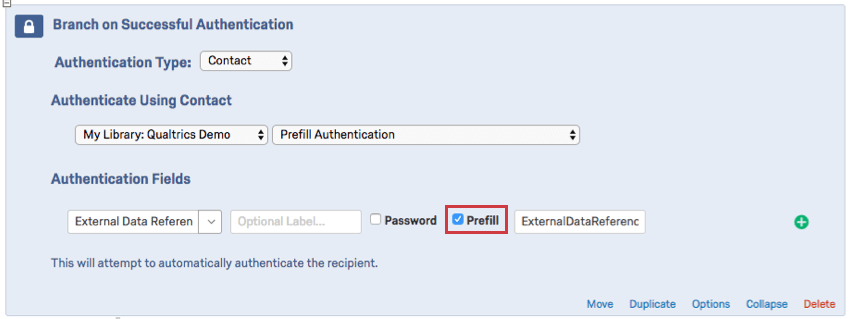
      <li>Add an **Authenticator** element beneath it. Authenticate against your imported contact list on **External Data Reference**, tick **Prefill**, and point it at `vy_code`. Leave **"Allow authenticating respondents to retake authenticated section"** unchecked, which is the default: that is what makes each code one-time.</li>
      <li>Drag your survey blocks inside the Authenticator.</li>
      <li>After the Authenticator, add a **Branch** for anyone who falls through without authenticating, ending in its own **End of Survey** element marked as screened out. Qualtrics records a failed authentication as a complete by default, so this branch is what keeps failed and duplicate visitors out of your data.</li>
    </ol>

    Qualtrics's own [Authenticator](https://www.qualtrics.com/support/survey-platform/survey-module/survey-flow/advanced-elements/authenticator/) enforces the gate, and in their own words the Prefill option means a respondent with the right credentials "never even sees the authenticator."

    <p className="vy-have"><strong>You now have:</strong> a gate that opens itself for verified respondents and routes everyone else to a screen-out.</p>

    <Frame caption="Qualtrics's own UI: Survey Flow, with an Embedded Data element at the top. 'Value will be set from Panel or URL' is exactly what your code field should say.">
      <img src="https://mintcdn.com/verify-you-alchemer-flow/-zaSabL3b_JIWQzv/images/qualtrics-add-authenticator.png?fit=max&auto=format&n=-zaSabL3b_JIWQzv&q=85&s=fd64a96ece7dfc468b151a56c1385cf3" alt="Qualtrics Survey Flow with Embedded Data element" width="850" height="451" data-path="images/qualtrics-add-authenticator.png" />
    </Frame>

    <Frame caption="Qualtrics's own UI: the Authenticator set to External Data Reference with Prefill ticked. 'This will attempt to automatically authenticate the recipient' is Qualtrics's own wording.">
      <img src="https://mintcdn.com/verify-you-alchemer-flow/-zaSabL3b_JIWQzv/images/qualtrics-prefill.png?fit=max&auto=format&n=-zaSabL3b_JIWQzv&q=85&s=e980cc66015e77bfa4c2ea8df018de3d" alt="Qualtrics Authenticator with Prefill enabled" width="850" height="319" data-path="images/qualtrics-prefill.png" />
    </Frame>
  </Step>

  <Step title="Share your study link">
    Paste the study link from step 2 into your panel, your sample provider, or your invite email.

    <p className="vy-have"><strong>You now have:</strong> a fielded study where everyone who reaches your questions came through the check. That's the whole setup.</p>
  </Step>
</Steps>

<Note>
  **License note.** Free Qualtrics accounts do not include contact lists, so this flow needs a standard or university license, which is what most institutions provide. If the Authenticator element does not appear in your Survey Flow options, your Qualtrics brand administrator can enable it.
</Note>

## What happens next

<div className="grid md:grid-cols-2 gap-5 mt-6">
  <a href="/respondent-flow" className="vy-card bg-gray-50 dark:bg-zinc-900 border border-gray-200 dark:border-zinc-800 text-gray-900 dark:text-zinc-50">
    <span className="vy-card-wm">
      <Icon icon="mobile-screen" iconType="light" size={250} />
    </span>

    <span className="vy-card-icon">
      <Icon icon="mobile-screen" iconType="light" size={22} />
    </span>

    <span className="vy-card-title">What your respondent sees</span>
    <span className="vy-card-sub text-gray-500 dark:text-zinc-400">The scan, the pass, the block, and the return, on real product screens.</span>
  </a>

  <a href="/any-platform" className="vy-card bg-gray-50 dark:bg-zinc-900 border border-gray-200 dark:border-zinc-800 text-gray-900 dark:text-zinc-50">
    <span className="vy-card-wm">
      <Icon icon="layer-group" iconType="light" size={250} />
    </span>

    <span className="vy-card-icon">
      <Icon icon="layer-group" iconType="light" size={22} />
    </span>

    <span className="vy-card-title">The same mechanism, any platform</span>
    <span className="vy-card-sub text-gray-500 dark:text-zinc-400">Alchemer and Qualtrics today; the pattern fits anywhere.</span>
  </a>
</div>