> ## Documentation Index
> Fetch the complete documentation index at: https://research.verifyyou.com/llms.txt
> Use this file to discover all available pages before exploring further.

# Alchemer setup

> Put HumanCheck in front of your Alchemer study. Five steps, no code.

<a className="vy-next" href="/respondent-flow"><span className="vy-next-step">3 of 5</span><span className="vy-next-label">Next: The respondent experience</span><span className="vy-next-arrow"><Icon icon="arrow-right" iconType="light" size={14} /></span></a>

<Steps>
  <Step title="Create your study">
    In Alchemer, exactly as you normally would, with one difference.

    <ol className="vy-sub">
      <li>Build your study as usual.</li>
      <li>Leave **page 1 empty**: your questions start on page 2. Page 1 is where the gate goes.</li>
    </ol>

    <p className="vy-have"><strong>You now have:</strong> a normal Alchemer study with an empty first page.</p>
  </Step>

  <Step title="Create a verification and paste your Alchemer link">
    In the VerifyYou dashboard.

    <ol className="vy-sub">
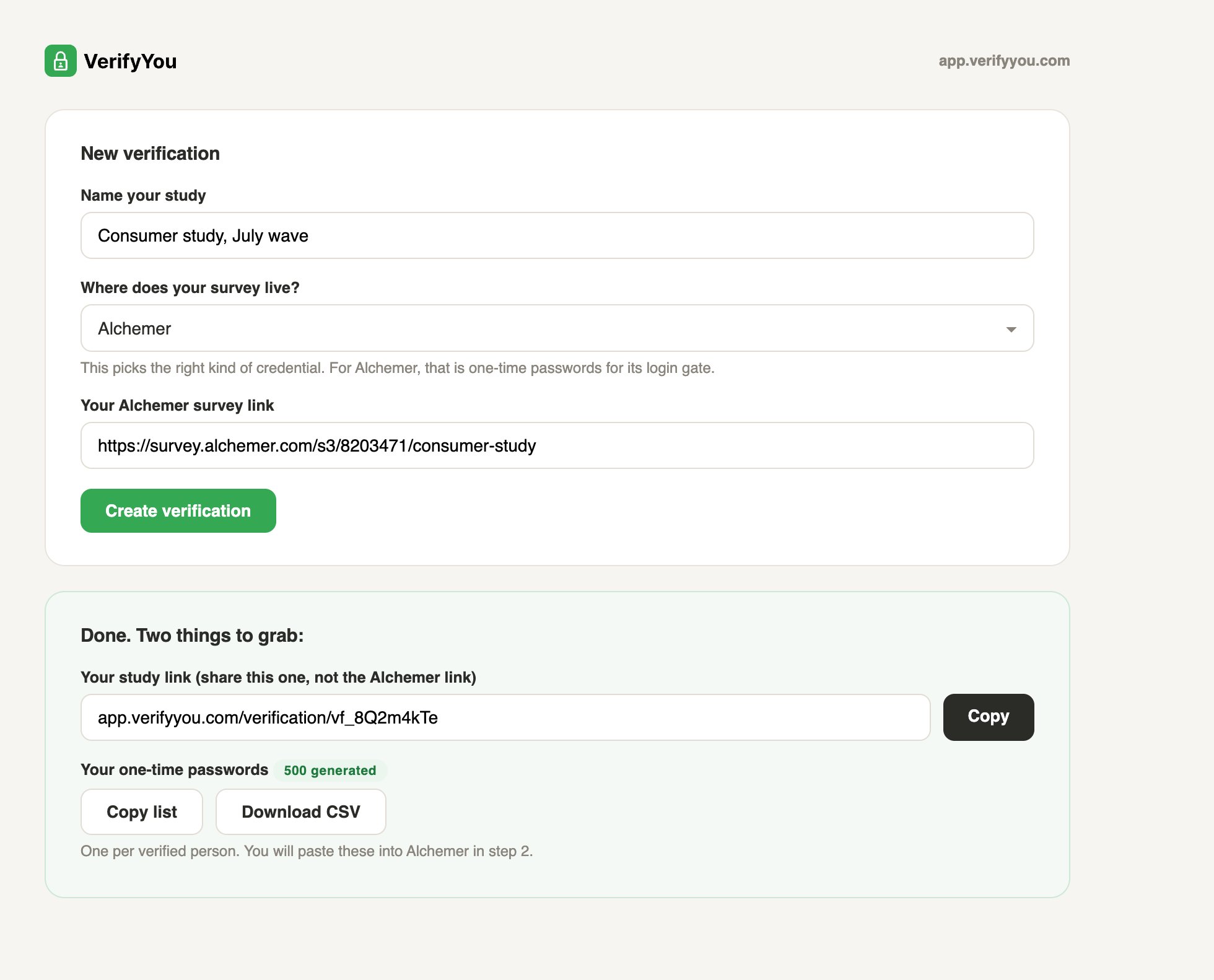
      <li>Click **New verification** and name the study.</li>
      <li>Under **"Where does your survey live?"** pick **Alchemer**. That choice is how we know to create one-time passwords, the credential Alchemer's own gate understands.</li>
      <li>Paste your Alchemer link and click **Create verification**.</li>
    </ol>

    <p className="vy-have"><strong>You now have:</strong> your <strong>study link</strong> (the one you share, your Alchemer link stays private) and your <strong>one-time password list</strong>.</p>

    <Frame caption="Dashboard mockup, a simple screen we are finishing now. What powers it, the hosted check and per-person single-use credentials, is live in the product today.">
      <img src="https://mintcdn.com/verify-you-alchemer-flow/jaPir_fWcH6ZJPMO/images/mock-create.png?fit=max&auto=format&n=jaPir_fWcH6ZJPMO&q=85&s=3d4895def2a1960599feaee91ca633e2" alt="VerifyYou new verification screen" width="1960" height="1582" data-path="images/mock-create.png" />
    </Frame>
  </Step>

  <Step title="Add your passwords to Alchemer">
    On **page 1** of your study.

    <ol className="vy-sub">
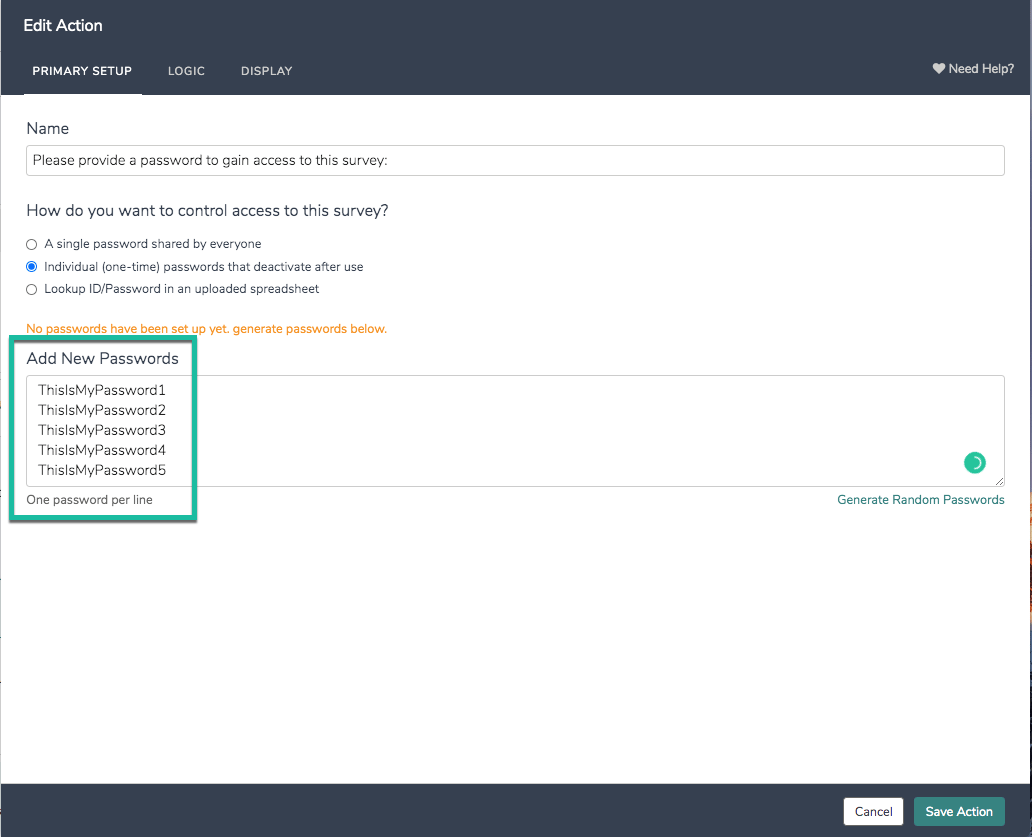
      <li>Click **Add New: Action** and pick **Login/Password**.</li>
      <li>Choose **"Individual (one-time) passwords that deactivate after use."**</li>
      <li>Paste your password list, one per line, and save. Keep this action alone on page 1.</li>
    </ol>

    Alchemer's own [Login/Password action](https://help.alchemer.com/help/login-password-action) enforces the gate before your first question shows.

    <p className="vy-have"><strong>You now have:</strong> a study that refuses anyone without a valid, unused password.</p>

    <Frame caption="Alchemer's own UI: the one-time password mode, pasted one per line.">
      <img src="https://mintcdn.com/verify-you-alchemer-flow/jaPir_fWcH6ZJPMO/images/alchemer-login-editor-2.png?fit=max&auto=format&n=jaPir_fWcH6ZJPMO&q=85&s=8ac85f06b1a89334708d533d18f44369" alt="Alchemer one-time passwords editor" width="1032" height="837" data-path="images/alchemer-login-editor-2.png" />
    </Frame>
  </Step>

  <Step title="Set the password to fill itself in">
    In the same Login/Password action.

    <ol className="vy-sub">
      <li>Open the **Display** tab.</li>
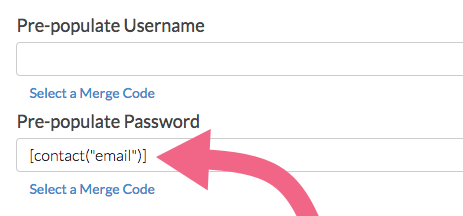
      <li>Set **Pre-populate Password** to the merge code `[url("vypw")]` and click **Save Action**.</li>
      <li>Optional, for a fully invisible gate: on page 1's **Logic** tab, turn on **Automatically Submit Page**. This is Alchemer's own documented recipe for [automatically logging a respondent in](https://help.alchemer.com/help/include-login-action-credentials-in-an-email-campaign-message), and with it a verified respondent goes straight from the check to your questions without ever seeing the login page.</li>
    </ol>

    <p className="vy-have"><strong>You now have:</strong> a gate that opens itself for verified respondents. The password lands in the box on its own, and with auto-submit on, they never even see the page.</p>

    <Frame caption="Alchemer's own UI. The example shown uses a contact merge code; yours uses the URL one above.">
      <img src="https://mintcdn.com/verify-you-alchemer-flow/jaPir_fWcH6ZJPMO/images/alchemer-prepopulate.png?fit=max&auto=format&n=jaPir_fWcH6ZJPMO&q=85&s=75df1948b5d56c14ca368fc6e80fb069" alt="Alchemer pre-populate password setting" width="463" height="216" data-path="images/alchemer-prepopulate.png" />
    </Frame>
  </Step>

  <Step title="Share your study link">
    Paste the study link from step 2 into your panel, your sample provider, or your invite email.

    <p className="vy-have"><strong>You now have:</strong> a fielded study where everyone who reaches your study came through the check. That's the whole setup.</p>
  </Step>
</Steps>

## What happens next

<div className="grid md:grid-cols-2 gap-5 mt-6">
  <a href="/respondent-flow" className="vy-card bg-gray-50 dark:bg-zinc-900 border border-gray-200 dark:border-zinc-800 text-gray-900 dark:text-zinc-50">
    <span className="vy-card-wm">
      <Icon icon="mobile-screen" iconType="light" size={250} />
    </span>

    <span className="vy-card-icon">
      <Icon icon="mobile-screen" iconType="light" size={22} />
    </span>

    <span className="vy-card-title">What your respondent sees</span>
    <span className="vy-card-sub text-gray-500 dark:text-zinc-400">The scan, the pass, the block, and the return, on real product screens.</span>
  </a>

  <a href="/any-platform" className="vy-card bg-gray-50 dark:bg-zinc-900 border border-gray-200 dark:border-zinc-800 text-gray-900 dark:text-zinc-50">
    <span className="vy-card-wm">
      <Icon icon="layer-group" iconType="light" size={250} />
    </span>

    <span className="vy-card-icon">
      <Icon icon="layer-group" iconType="light" size={22} />
    </span>

    <span className="vy-card-title">The same mechanism, any platform</span>
    <span className="vy-card-sub text-gray-500 dark:text-zinc-400">Alchemer today; the pattern fits anywhere.</span>
  </a>
</div>